

Building a custom Chrome extension seems very complex, but believe me, it is actually very simple to create. It requires only HTML, CSS, and JavaScript to develop a fully functional Chrome extension. Now, before developing a new Chrome extension from scratch, let me tell you the benefits of creating your own Chrome extension. The Chrome extension provides you with a powerful way to automate your Chrome tasks, enhance your browser capabilities, and much more. Like you can create the volume booster or automatic page refresh, etc. Now, let's create our first Chrome extension step by step.
Related Article: 6 Best YouTube Video Downloader Chrome Extensions
Contents [hide]
Create folder structure/project structure
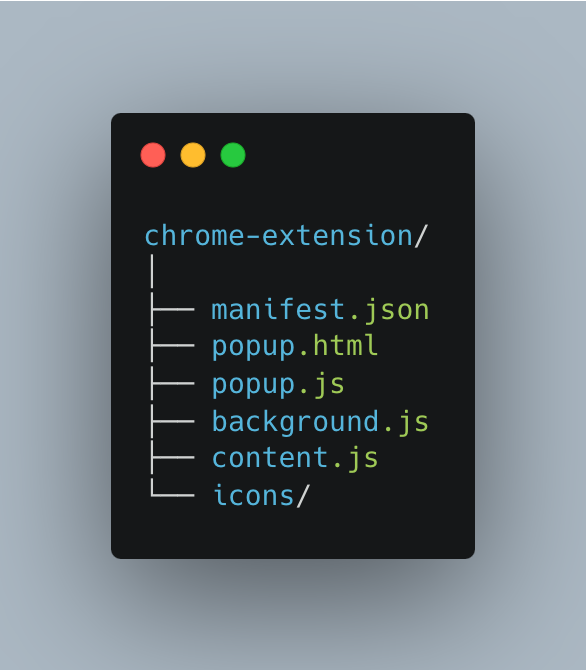
A Chrome extension is a bundle of HTML, CSS, and JS files, and its configuration is stored in the manifest.json file. So first, create the following 6 files under your Chrome extension folder.
Create Manifest.json file
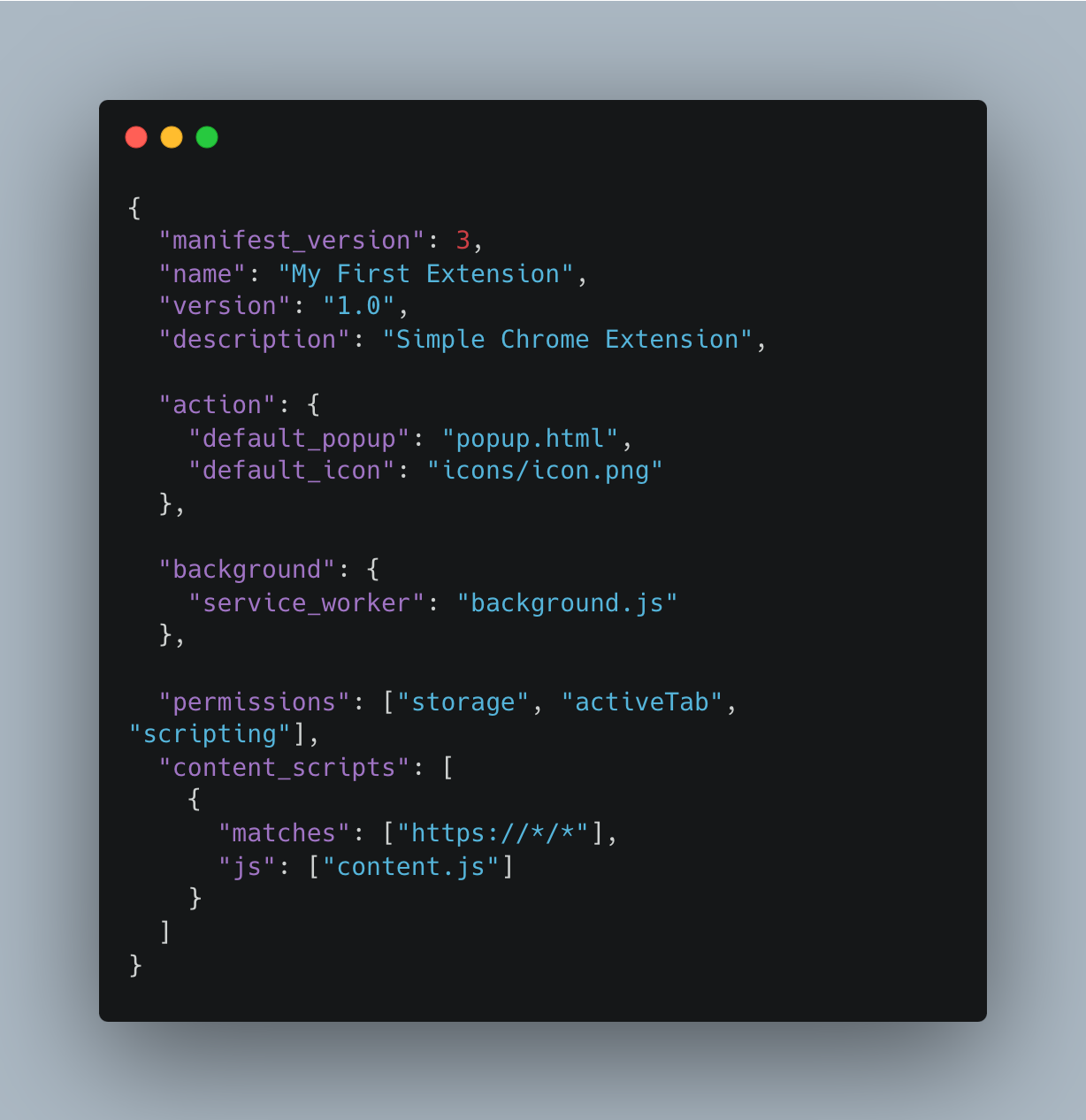
Next, create the manifest.json file, which is the main brain of your Chrome extension. Just change the name and description as per your chrome extension.
Popup UI (popup.html)
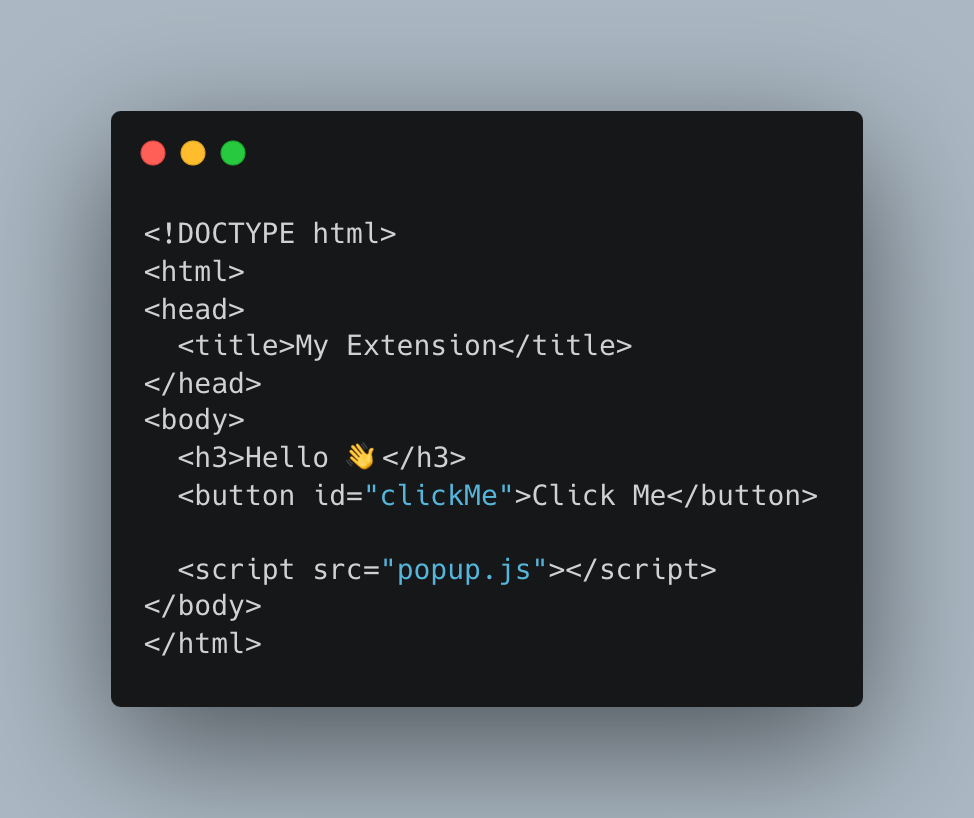
It is the first UI which is visible once you open the Chrome extension. So, create this file as per the image below and update it as per your needs later.
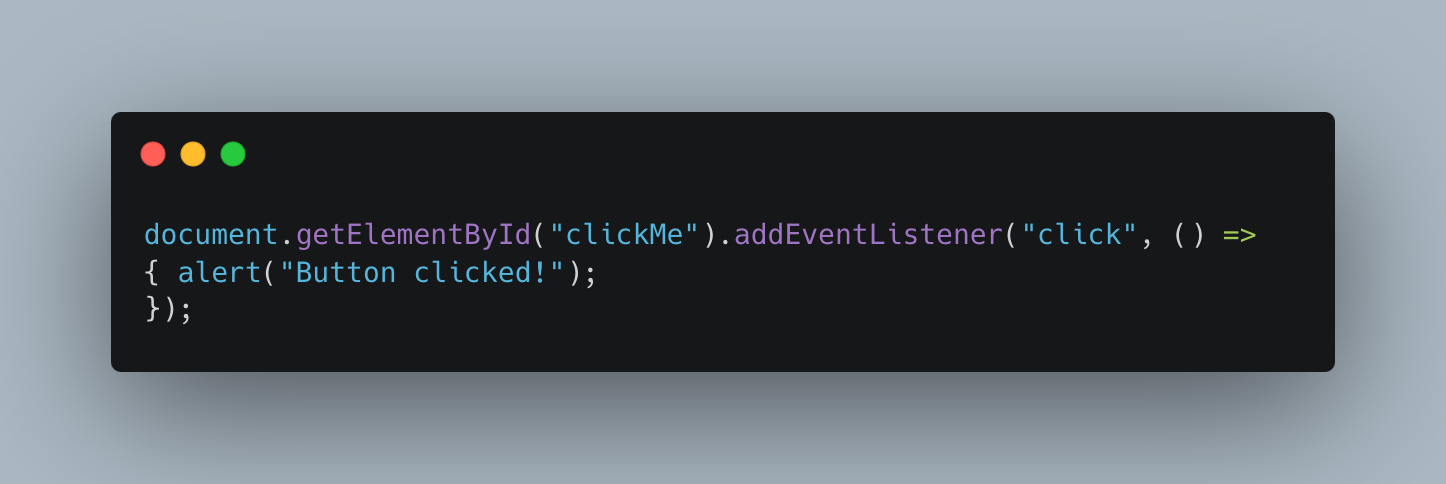
Add Popup logic in the popup.js file
Now it's time to write down your custom logic in the popup.js file that we created at the first step. For now,
I just added an alert on the click of the Click Me button.
Add a content script
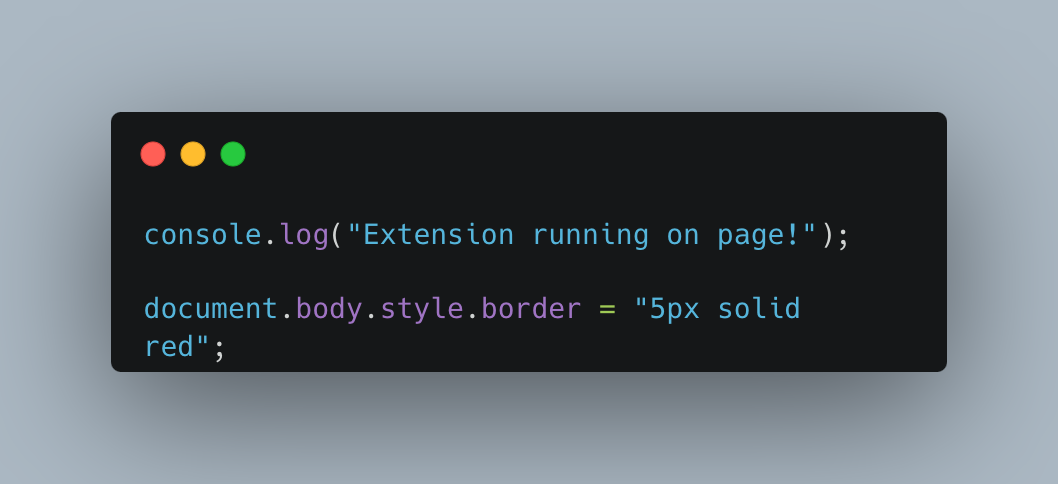
This script runs inside web pages. The main purpose of this file is to interact with the DOM, read/change page content, modify styles, etc.
Add background.js script
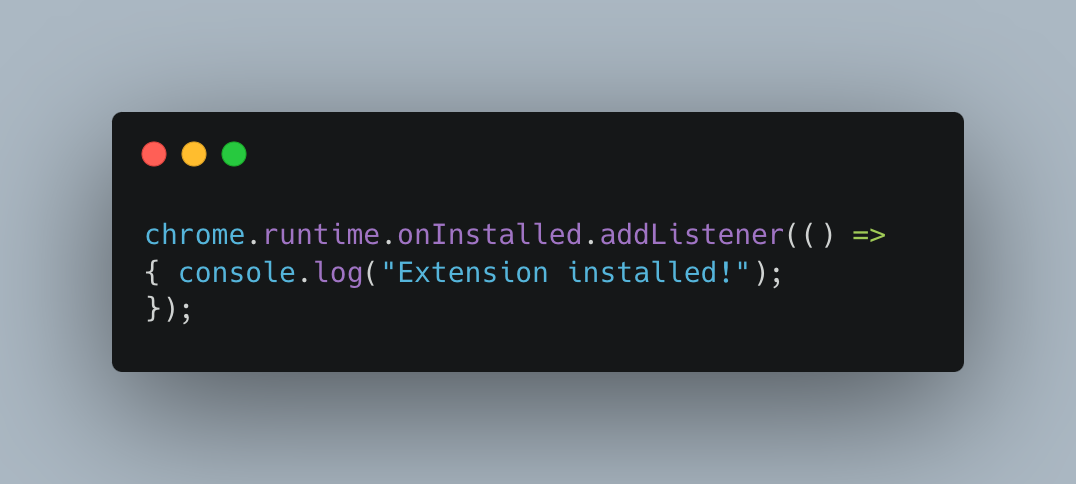
Its a controller running behinds the scenes. The main purpose of this file is to handle events and logic, handle the life cycle of chrome extnstion, handle API calls, etc.
Load the extension in Chrome
This is the last step to add your chrome extenstion in the chrome. So, to add this, just folow the steps below to load your newly chrome extension.
-
Open Chrome and go to
chrome://extensions/ -
Enable developer mode
-
Click on load unpacked
-
Select your Chrome extension folder.
Yehh that is your extension is loaded in to the Chrome.